Budgets and Categories
A budget in Cashfulness keeps an eye on a category or a single account: you set an amount and a period, and the app compares actual performance against your plan. Categories are the way to group accounts however you like, and they are used both in budgets and in balance sheet indices. In this chapter you will see how to create a budget in two steps and how to make the most of Pillars and personal categories.
The Budget page
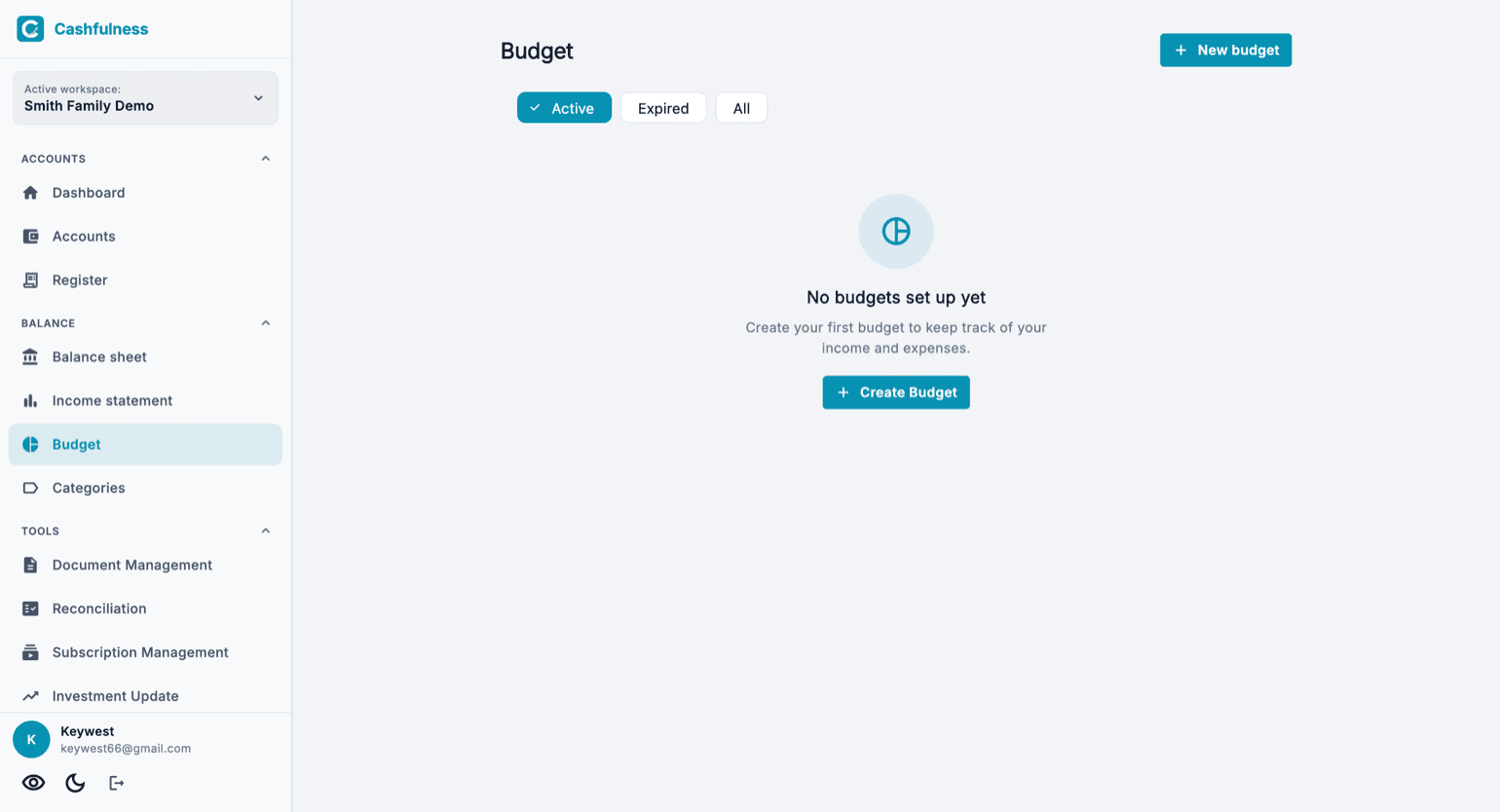
You will find Budget in the sidebar, next to Balance Sheet and Income Statement. The page lists the budgets of the active workspace; on your first visit a message invites you to create your first one with the Create Budget button.
Three filters at the top help you find your way: Active shows budgets whose period is in progress, Expired those whose period has ended, and All shows the complete list. The New budget button starts the creation wizard. Below the filters you choose the order: By priority puts at the top the budgets that are overspending or falling behind, Alphabetical lists them by name. Your choice is kept for the next visits.
Step 1: type and target
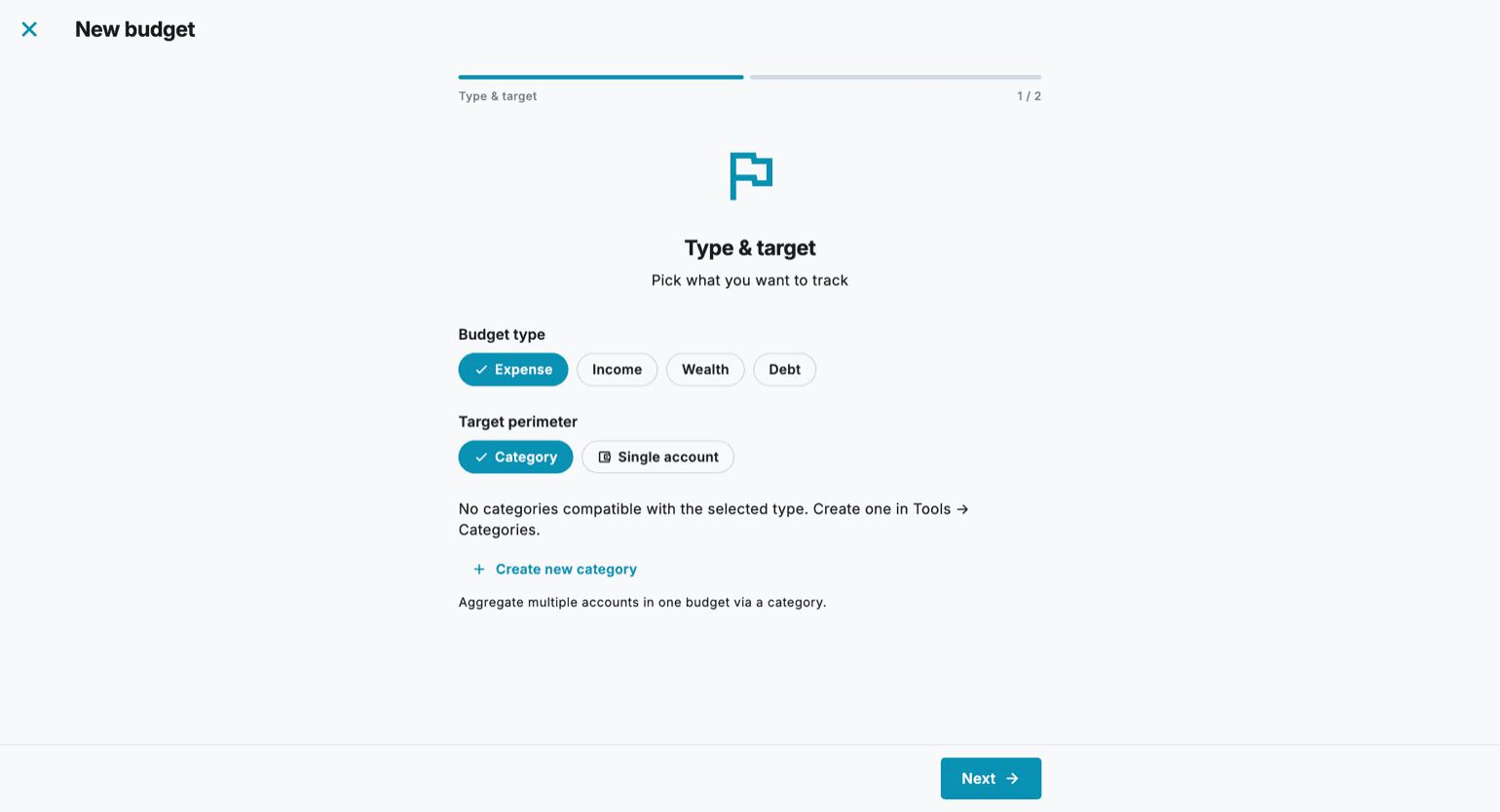
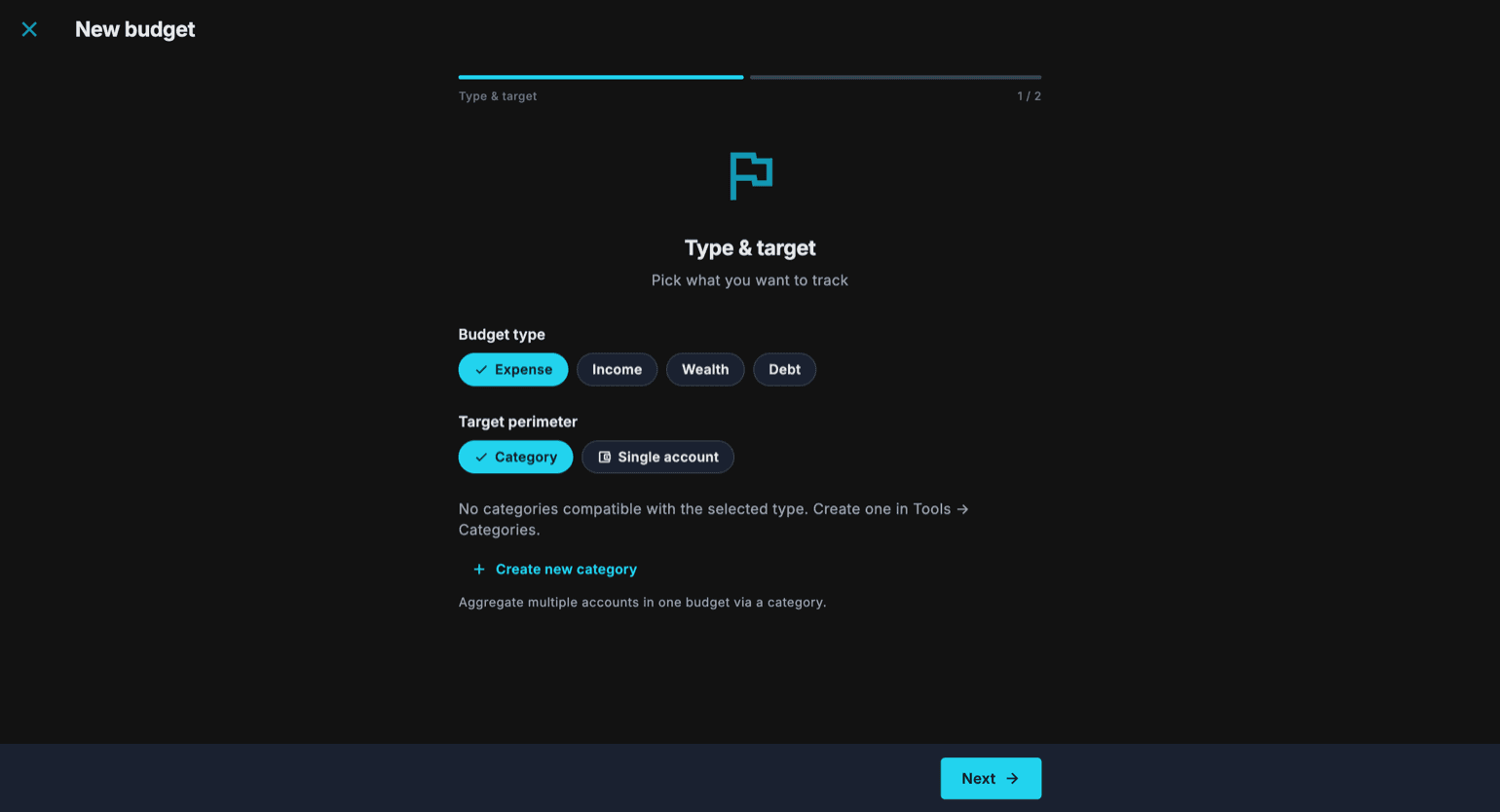
Creation is a two-step wizard. In the first step, Type and target, you choose what you want to keep an eye on: the budget type can be Expense, Income, Wealth or Debt, while the target perimeter can be a Category, which aggregates several accounts into a single budget, or a Single account.
- On the Budget page, press New budget.
- Choose the budget type: Expense, Income, Wealth or Debt.
- Choose the target perimeter: Category or Single account.
- Select the category or account to monitor. If no suitable category exists yet, you can create one on the spot with Create new category, giving it a name and picking the accounts to include.
- Press Next to move on to the second step.
Step 2: amount and period
In the second step you decide how much and for how long: enter the budget amount and choose the frequency. With Monthly, Quarterly or Yearly the period dates are set automatically; with Custom you define the range yourself, and in any case you can adjust the dates manually.
- Enter the budget's reference amount.
- Choose the frequency: Monthly, Quarterly, Yearly or Custom.
- Check the period start and end dates, set automatically based on the frequency.
- Confirm with Create budget: the new budget appears in the list right away.
Progress, thresholds and renewal
Every budget shows the progress of its period: how much you have used compared to the planned amount and how much time has elapsed. Warning thresholds feed a traffic light that shows at a glance whether you are on track, above or below plan, so you can immediately spot the budgets that need attention.
Opening a budget shows its detail. The share you have spent keeps climbing past 100%, and if you went over the amount the Numbers say so with Over by. At the bottom you find Expenses in this period: all of them, one by one, with the account they hit; tap one to open it.
At the end of the period the budget expires and moves under the Expired filter. When the deadline approaches the app lets you know, and from there you can renew the budget for the next period without having to recreate it from scratch.
Categories: Pillars and personal categories
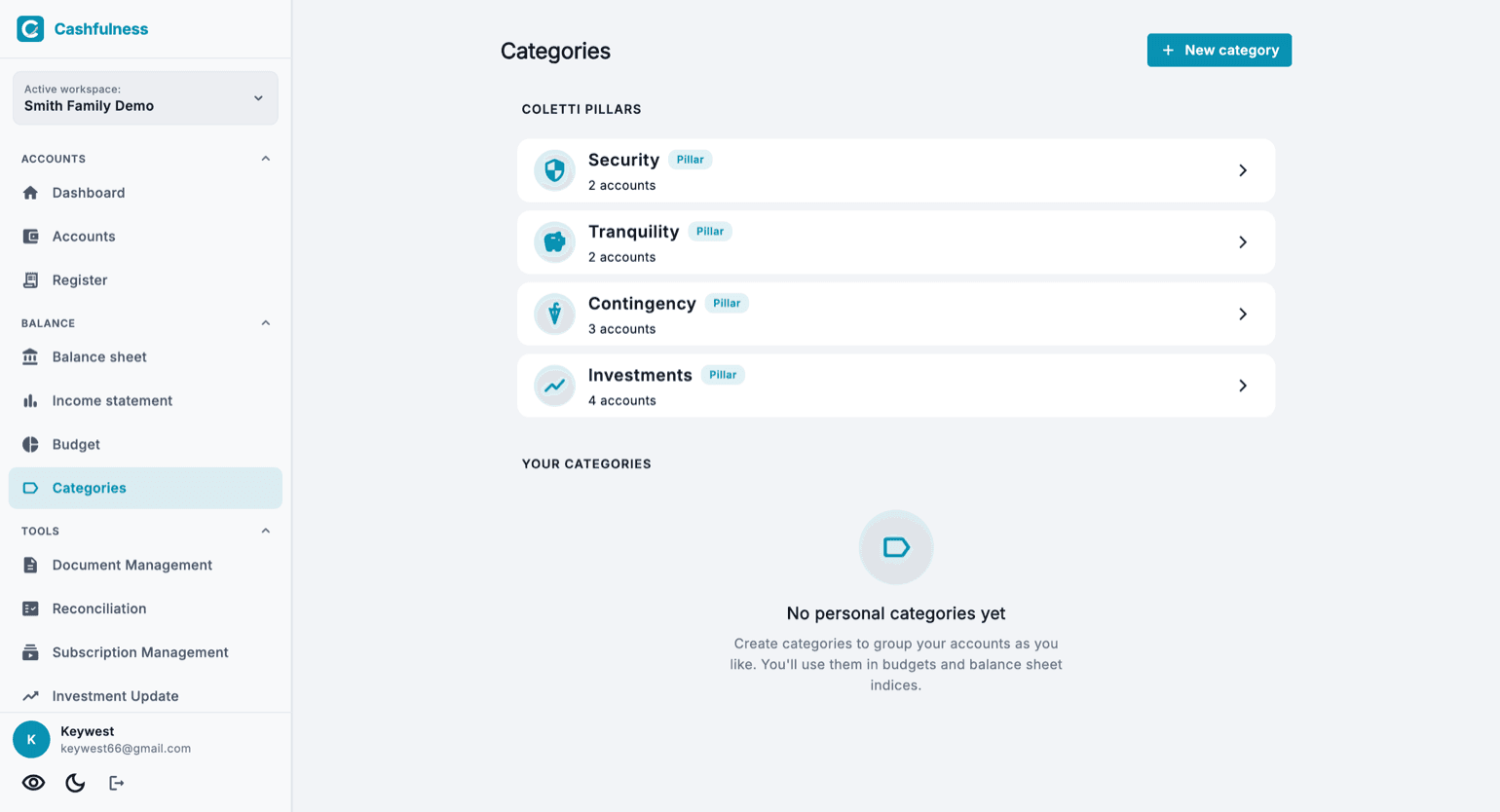
The Categories page gathers two families of categories. At the top you will find the four Pillars, the predefined categories that split your wealth by time horizon: Security, Tranquility, Contingency and Investments. Each Pillar shows how many accounts it contains and opens to reveal its detail.
Below are your personal categories: free groupings of accounts that you create with New category and organize however you like, for example to gather all your household utilities or the accounts of a project. All categories, Pillars included, are used in budgets and in balance sheet indices.