
The Tools
The Tools section of the sidebar gathers the features that work alongside the Ledger and your reports: this is where you file documents, keep an eye on subscriptions, update the value of your investments and check the status of your accounts. Every tool always works in double-entry: any entry it generates stays balanced, no exceptions.
Documents
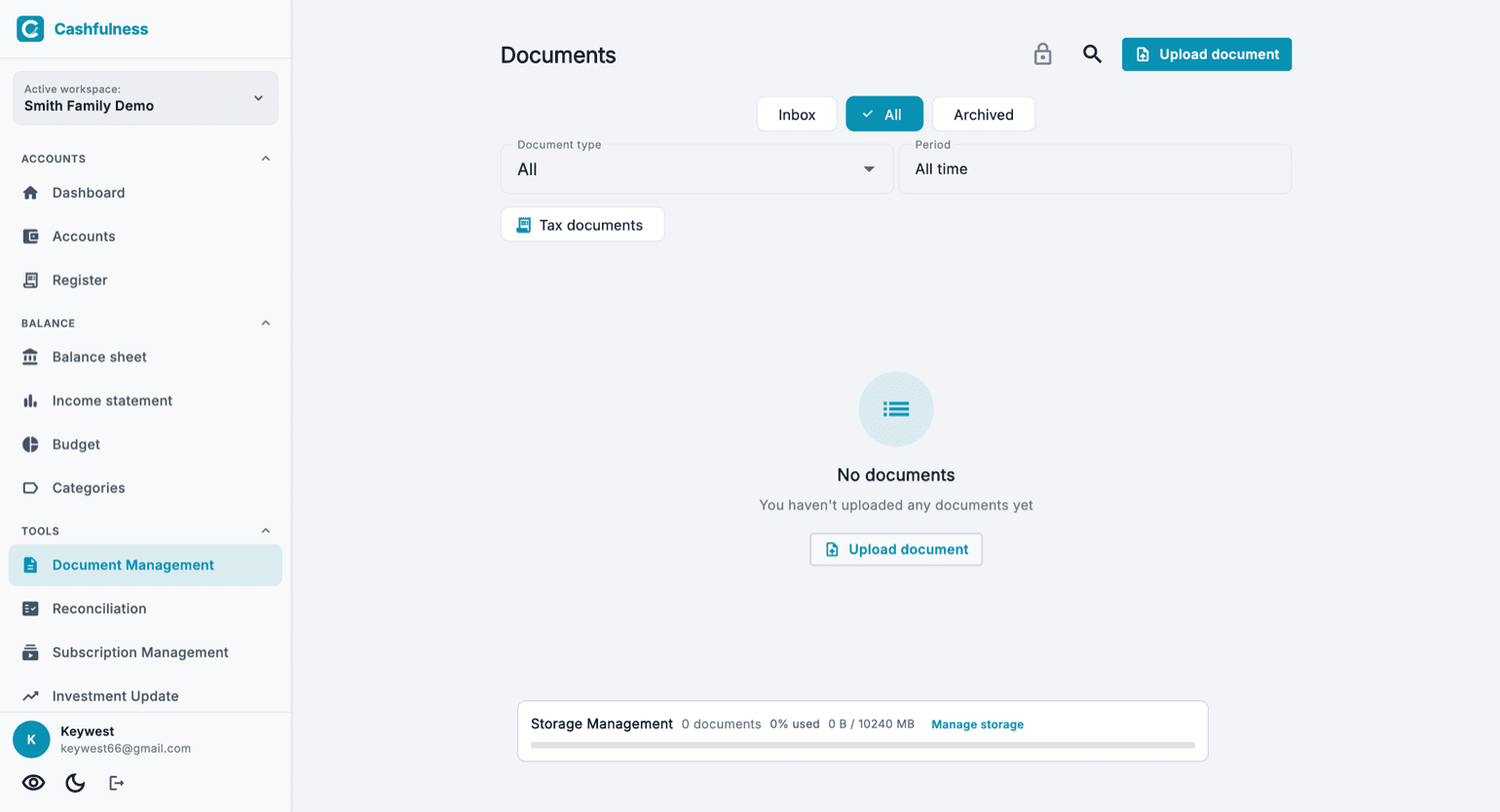
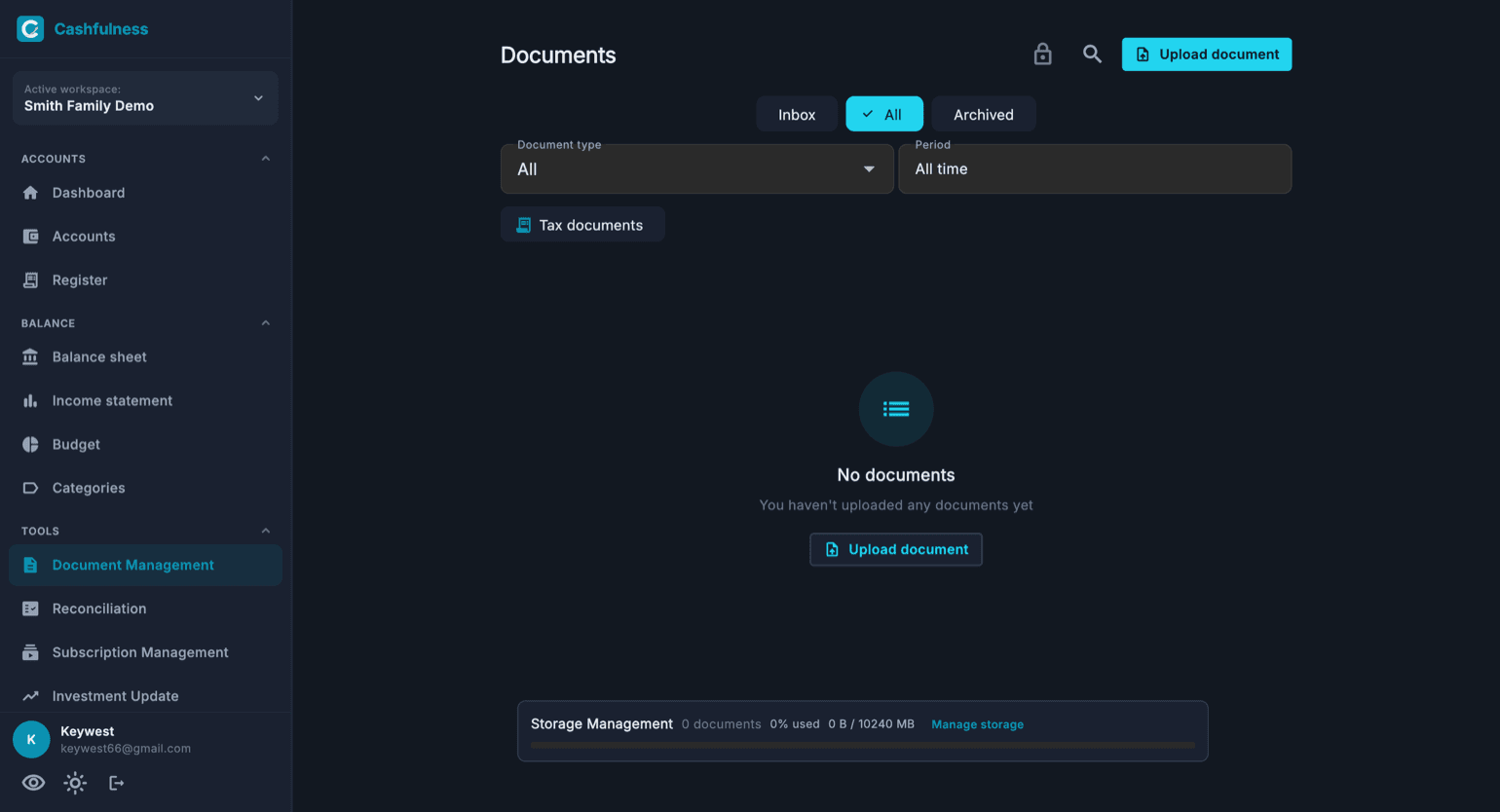
Documents is the archive of your workspace: here you upload receipts, contracts and other files, attaching them to transactions or keeping them at workspace level. Three tabs organise the flow: Inbox for files that just arrived and still need sorting, All for the complete archive, and Archived for what you have set aside.
You can filter by document type and by period, or isolate tax documents with the dedicated filter. At the bottom of the page, the storage bar shows how many documents you have uploaded and how much storage you are using; from there you can also open the storage management view.
Documents are protected with end-to-end encryption: the first time, a wizard has you create a dedicated document code and a 24-word Recovery Key. While encryption is unlocked you can review the 24 words at any time: tap the lock at the top of the Documents page and choose "Show Recovery Key".
If you forget the document code, the Recovery Key lets you set a new one. If you lose both, no one can recover the encrypted documents anymore — not even us: it is the same protection that keeps everyone else out. To start over, the unlock window offers "I lost both my document code and Recovery Key": it tells you where you stand, deletes the now-unreadable documents and walks you through creating new credentials.
Before deleting everything, check your other devices: if on one of them your documents still open without asking for the document code, the key is still there. Open "Show Recovery Key" from that device and save the 24 words — you have lost nothing. Do not sign out on that device until you have saved them.
- Open Documents from the Tools section of the sidebar.
- Press Upload document at the top right and pick the file from your device.
- Assign a document type and, if you like, link it to a transaction in the Ledger.
- Find the file again using the Inbox, All and Archived tabs or the type and period filters.
Subscriptions and Utilities
Subscriptions and Utilities is the registry of your contracts: subscriptions, household utilities and insurance policies. For each contract you record the provider, how much you expect to pay and how often, the expiry date and the notice period for cancelling; utilities also have room for the customer code and the supply code, such as the electricity POD or the gas PDR. At the top of the page you see what they cost altogether, per month and per year, and the contracts close to their deadline, with the last useful day to cancel.
Each section says under its title what it holds. «Decide now» is not a separate state: these are active or cancelling contracts whose deadline is close, pulled to the top so they don't get lost further down. Active ones are running, and they are what the total is made of. Those in «Being cancelled» have been cancelled but haven't ended yet: you pay until the last day, so they still count. Closed ones cost nothing any more and stay out of the total, listed only for the history. And a closed contract can be reopened: on its card, next to Cancel contract, there is Reactivate, which puts it back among the active ones and clears the cancellation along with the service end date. If a recurring entry is linked, the app asks whether to switch that back on too, and the box starts off.
The app does half of the census for you: the Found among your expenses section watches your entries and suggests the costs that come back with a recognizable rhythm, with the form already filled in. They are proposals: they only count once you confirm them. A contract can have its recurring transaction attached, and in that case you see it in two places: here as a contract, and among the recurring rules as a rule. That is intentional, they are two views of the same thing; when you cancel a contract, the app asks whether to stop the recurring rule too.
This section never writes into your books: entries remain the job of transactions and recurring rules, while the contract sits above them and tells you what it costs and when you can get out. The list can be viewed on any plan; adding, editing and cancelling contracts is part of the paid plans.
There is more in here than the subtitle can list: streaming, phone and broadband, electricity, gas and water, the gym, subscription software, service charges, and insurance and car costs too. Insurance has its own type, with room for the policy number, and road tax fits fine under Other. The question to ask isn't what kind of expense it is, but whether something renews on its own and there's a day by which you have to decide whether to keep it.
Every row says who records the entry: next to the type and the provider you'll see «Recorded automatically», when a live recurring rule is linked and offers you the entry on the due date, or «You record it yourself», when that entry is up to you. In the second case the date you see does not move on its own: it stays where you put it. Keeping a contract purely as a reminder is perfectly fine — it tells you what it costs and when you can cancel — but it's worth knowing which is which.
A «no» to a suggestion is remembered: the row moves to «Dismissed», where «Restore» brings it back. It holds as long as that account keeps behaving the same — if its amount or cadence changes it returns to the suggestions on its own — and it applies to the accounting space, not just to you.
At the bottom of the screen a partner box may appear, for example a comparison service for electricity and gas offers. Above it, it always says that it is content in partnership, and Why am I seeing this? explains the rest: it is an affiliate link, if you activate an offer the company that promotes Cashfulness may receive a commission, and your price does not change. None of your data reaches the partner. The box only appears in the countries where the offer exists. The same box can also appear in the detail of a bill's cost account, above the transactions: there you can close it with the X, and it will not come back for that account on this device.
Payments due
Payments due collects the things somebody else sends you that have to be paid by a date: council tax, a fine, the service charge on your building. They are not recurring transactions, which are forecasts, and they are not contracts, which are relationships that last: they are obligations that arrived from outside, with the amount already printed on the notice and a penalty if the date goes past. Noting one down takes three things: who has to be paid, how much, and by when.
Every payment has its own notice period, seven days to start with, and from that day onwards a reminder arrives at 9 in the morning on your device. If the date passes and the payment is still open, the reminder keeps arriving every morning until you give it one of the three answers. Beside the fields there is room for the notice reference, the payee's account, the website to pay on and free-form instructions; attaching the notice is worth more than all of them, because the codes and the form are already printed on it. Your phone keeps the reminders for the coming month scheduled for all your workspaces together, and that window moves forward on its own every time you open the app: if you don't open it for more than a month, the ones further out don't arrive. When you log out of your account, they are deleted.
When you tap I've just paid it, the app asks what you paid with, when you actually did it and how much went out, and only at that moment does the double-entry record come into being. The date that lands on the entry is the date of payment, not the due date: a bill due on the 31st and paid on the 2nd is an expense of the following month. Straight afterwards the app offers to note the next one, with everything already filled in except the date. Next to it there are two more answers, and they record nothing: I'd already paid it, for when the money really did go out but that entry is already in your accounts another way, and I don't need it, for when you noted it down by mistake or in the end you didn't have to pay it. There are two because they are two different facts about your money, and the closed entry remembers which one you chose. Neither is for an expense you still have to record: nobody would write that entry.
If you have several payments to close the same way, for example old ones already paid another way, tap Select at the top: a checkbox appears next to every open payment, and a bar at the bottom of the screen offers Already paid and No longer needed. They are the same two answers, given in one go to all the ones you picked. I've just paid it isn't there, on purpose: every real payment has its own account, its own date and its own amount, and is recorded one at a time.
The due date field starts empty, and it does so on purpose: it used to arrive with today already written in it, which is a fake answer, and anyone who did not notice ended up with a reminder that had already gone by. As long as the date is missing, the reminder box says so instead of staying silent, and saving asks for it.
Investment Update
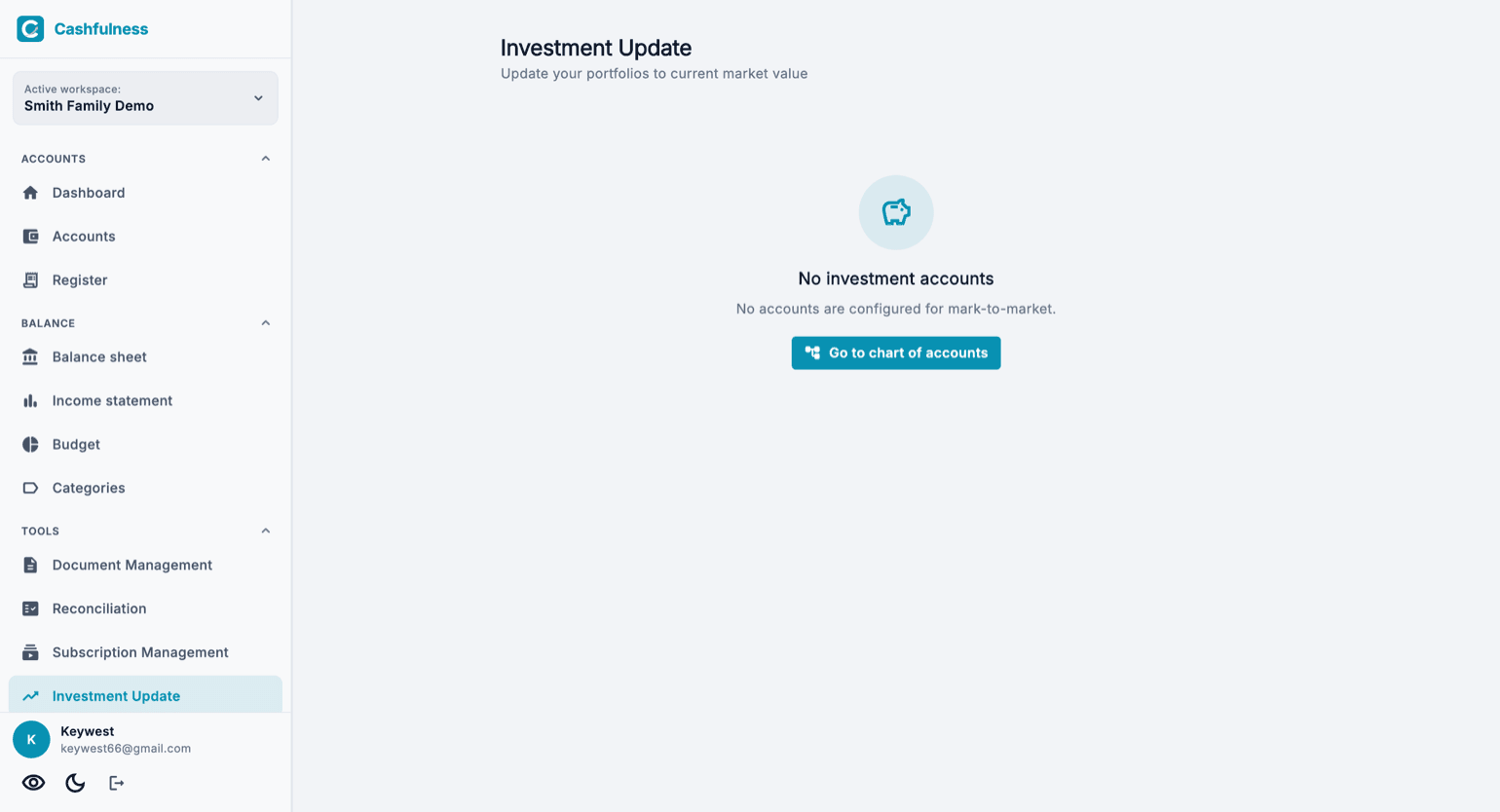
Investment Update lets you value your portfolios at the current market price. The page lists the investment accounts configured for value updates: for each one you enter the current market value and the app records the revaluation as a balanced double-entry transaction.
The difference between the old and the new value is not simply overwritten: it is properly booked, so your Balance Sheet and Net Worth reflect the real performance of your investments while keeping the full history of changes.
- Open Investment Update from the Tools section.
- Choose the investment account you want to update.
- Enter the current market value of the portfolio.
- Confirm: the app records the revaluation and updates the account Balance.
Reconciliation
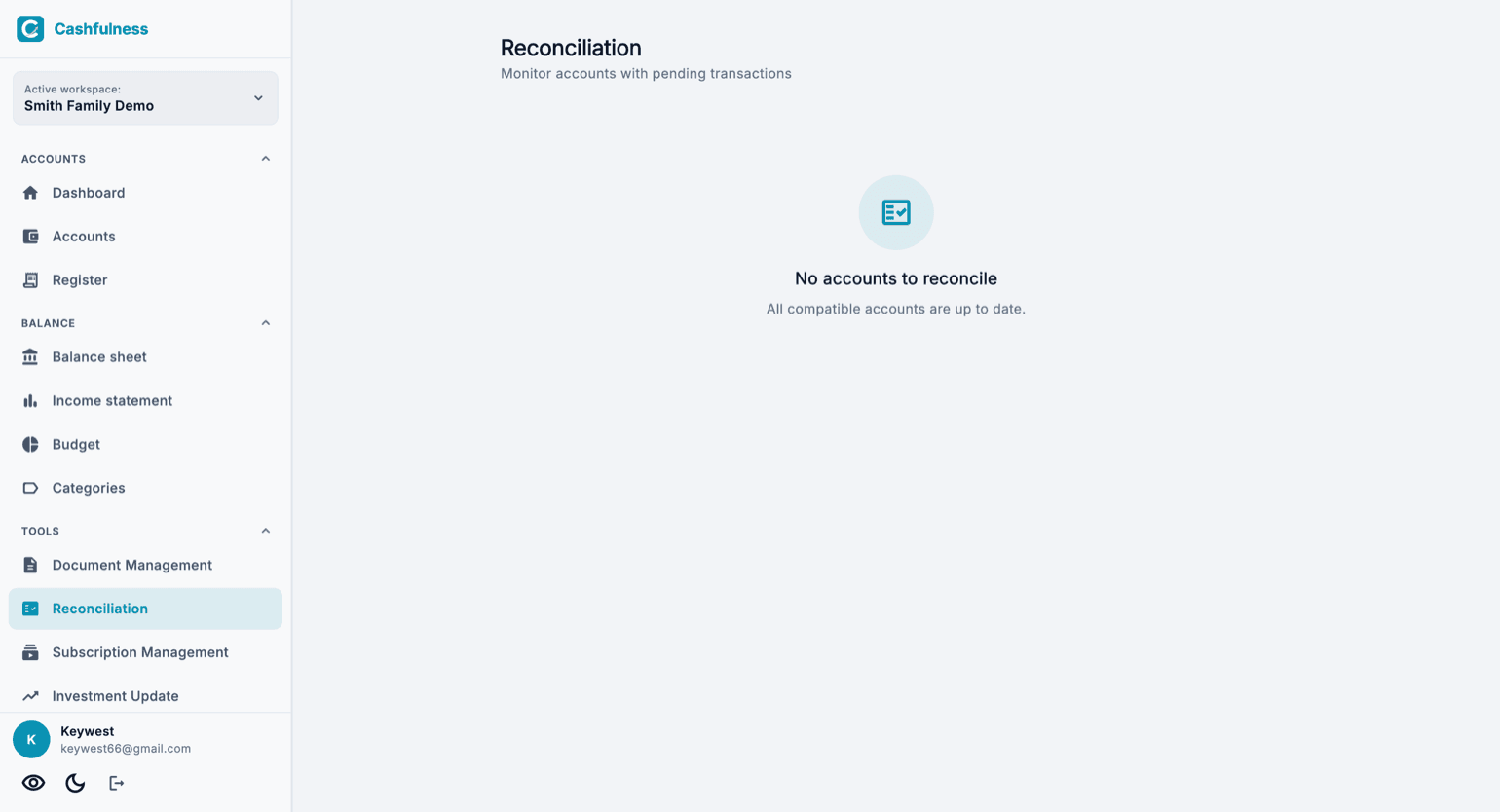
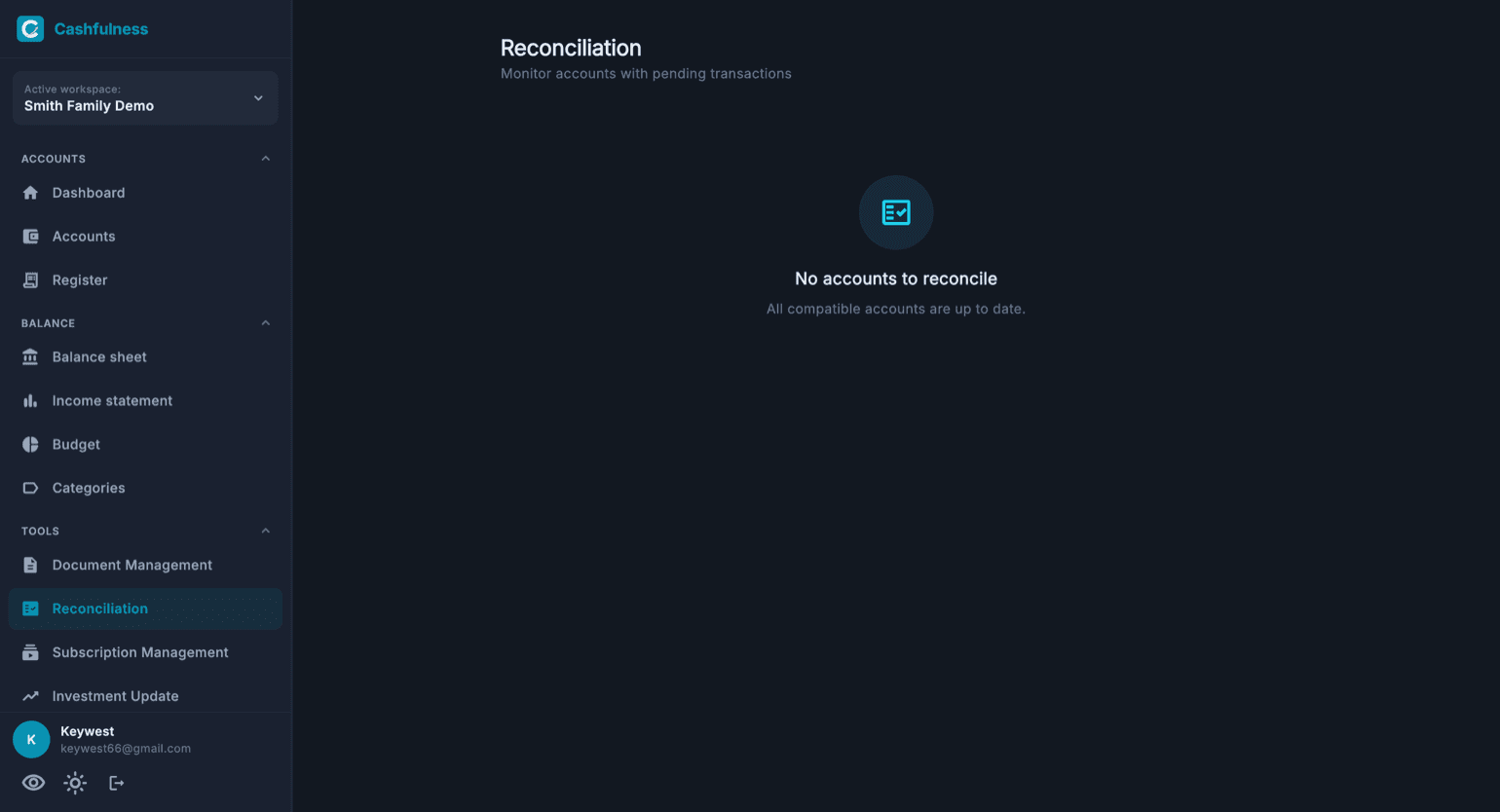
Reconciliation offers an overview of your reconcilable accounts and their status, monitoring the ones with pending transactions. It is the checkpoint for verifying that the Balances recorded in Cashfulness match reality, for example your bank statement.
When every compatible account is up to date, the page confirms it with a dedicated message: no accounts to reconcile. Otherwise, you immediately see which accounts need your attention.
Reconciliation is no longer just for current accounts and cards: it applies to investment and crypto accounts too. Anyone with an exchange or a broker most certainly does get a statement, and wants to compare it.
On those accounts, though, the balance also moves on its own, and the screen tells you so: the statement includes how much the value has risen or fallen by itself, while your books hold the purchases, the sales and the money moved. So if a difference is left after you have ticked everything, that is almost always what it is and it is not a mistake of yours: it will not close by ticking more entries, it closes by recording the account valuation at the statement date, from Investment Update or Asset Revaluation.
An account is flagged when it has pending entries and the next statement is close: the warning starts five days before the estimated date. That estimate counts from your last reconciliation, or — if you have never reconciled that account — from the oldest entry still to be reconciled. Recording a new entry does not push the reminder back: the countdown resets only when you actually reconcile. Under the account name you can see how many days the oldest entry has been waiting, so you can tell “the statement is about to arrive” from “this has been sitting for months”.
Above the list, next to the filters, there is a search-by-name field: it adds to the active filter rather than replacing it, and if the name does not exist the screen says so instead of telling you to change filter.
Depreciation, Warranties and Asset Revaluation
Three tools dedicated to your assets complete the section. Depreciation handles goods with planned obsolescence: their value is reduced over time through regular accounting entries, so the Balance Sheet reflects the actual remaining value.
Warranties keeps track of the warranty expiry dates of your belongings, so you always know which purchases are still covered. Asset Revaluation, finally, lets you adjust the value of your assets as it changes over time, whether up or down.
As with every tool, depreciation and revaluations also generate double-entry transactions: every change in value always has a counterpart, and the sum of the debit and credit lines stays at zero.
Recurring entries
Recurring entries are rules for what repeats: salary, rent, instalments, subscriptions, investment plans. You create the rule once — what, how much, how often — and from then on the app presents each due date as it arrives, already filled in: you confirm it with one tap, skip it, or adjust the amount if that time is different.
The rule never writes to your books on its own: every entry is created only when you confirm, and it is born balanced in double-entry. That is the difference between a forecast and a fact: the recurring rule forecasts, you record. Unconfirmed due dates gather in the «Due entries» queue, at the top of the page and on the home page, so nothing slips by in silence. If you create a rule that starts on a date already in the past, the app asks whether you have already recorded the payments before today: if you have, the rule starts from the next one and does not propose them again.
The types cover real cases: fixed-amount expense and income, variable-amount utilities (at each due date it asks how much arrived), transfers between your own accounts, recurring investment plans, and subscriptions — which you can also keep «in the list only», with no entries, just to know what you spend. A subscription can become a contract in the Subscriptions and Utilities page, and then you see it in two places: that is by design, two views of the same thing.
On the All filter, at the top, the Fixed expenses and income box compares what goes out and what comes in regularly: one row per cadence (Every month, Every three months, Every year), with the amount at each due date, and at the bottom everything brought to a month and a year with the margin. Transfers and investment plans are kept apart: they move money between your accounts, they do not spend it.
Deleting a rule does not touch history: the rule and its unsettled due dates disappear, but the entries already recorded stay in your books, because those actually happened.
- Open Recurring entries from the Tools section of the sidebar.
- Press New recurring entry and pick the type: expense, income, utility, transfer, investment plan or subscription.
- Set amount, frequency and the two accounts of the entry; save the rule.
- At each due date you will find the entry in the queue: confirm it, skip it or adjust the amount.
Mortgage or loan
Mortgage or loan builds the amortization schedule from four numbers on your contract: principal, annual nominal rate, number of instalments and the date of the first one. The app computes a French-style schedule and shows you the instalment, the principal and interest portions and the final date before writing anything.
Mind which number you copy: you need the nominal rate (TAN), not the APR (TAEG). The APR includes fees as well, and used here it would produce a higher instalment than the real one. If you also enter the instalment printed on the contract, the app checks that the schedule matches: when it does not, it is usually because the APR ended up where the nominal rate belongs.
On your books it works like this: the full instalment leaves the account you chose, the debt decreases by the principal portion only, and the difference is interest, which is a cost. Three accounts, one balanced entry per instalment: the Balance sheet shows the true remaining debt, the Income statement the true cost of the loan.
The schedule applies to fixed rates. If yours is variable, the schedule cannot exist in advance: it is rebuilt when the bank communicates the new rate.
- Open Mortgage or loan from the Tools section of the sidebar.
- Copy principal, nominal rate, number of instalments and first instalment date from the contract.
- Pick the three accounts: the one the instalment leaves from, the debt, and the interest account.
- Check the computed instalment — if you entered the contract one, the app compares them — and press Create the schedule.
Labels
Labels group transactions scattered across different accounts under a name of yours: «Holidays 2026», «Bathroom renovation», «March business trip». The chart of accounts answers «what kind of expense is this?»; the label answers «which project does it belong to?» — two different questions, which is why both exist.
A label is born the moment you write it on a transaction, in the Labels field of the form: there is no need to create it beforehand. The Labels page in Tools is the registry: you see how many transactions each one carries, rename it everywhere in one go, or delete it.
Labels never touch your books: they are a reading layer above the entries. Deleting one does not move a cent — the transactions stay where they are, only the grouping is lost.
- Record a transaction and type a name in the Labels field: the label is born there.
- Reuse it on the transactions that belong to the same project, on any account.
- Filter the Register by label to see the whole project together, with its total.
- From the Labels page in Tools you tap a label to open the Register already filtered on it, or rename or delete the labels of the whole space.
Import from CSV
Import from CSV brings in accounts and transactions from another program, a spreadsheet or a bank statement. It accepts CSV, TSV and text files separated by comma, semicolon or tab, and understands two shapes: one row per transaction (the classic bank statement) or several rows per entry (the double-entry exports of other accounting tools).
The path has three steps: pick the file, say what each column contains — date, description, amount, account, counterpart — and look at the preview. Before anything is written you see how many rows will come in, in which currencies, and what was not understood: no surprises after the fact.
If an account that already exists is in a different currency from the amounts in the file, its rows are converted at the rate for the day of each transaction, and the preview tells you so before you import.
Accounts named in the file that do not yet exist in the space are created during the import, following the path written in the file: that is why the account field here is free text rather than a list to pick from. Every imported transaction enters as a balanced double-entry, as if you had recorded it by hand.
If the result does not convince you, the import can be undone as a whole: the entries it created disappear together, with no manual hunt.
- Open Settings, then Backup and data, and tap Import from CSV.
- Pick the file and say what each column contains.
- Check the preview: total rows, currencies and rows that were not understood.
- Confirm the import — and if needed, undo it as a whole right after.