
Plans and subscription
Cashfulness offers three plans: Free, Premium and Ultra. Your subscription is tied to your account, not to a single workspace: it applies to every workspace you own. This chapter shows you how to choose a plan, where to check your subscription status, and what happens if your plan moves down a tier.
The three plans
The Free plan is designed for getting started: you get all the essentials of double-entry accounting, with some limits on history and volumes. Premium unlocks the advanced features, such as the full dashboard, and takes document storage from 50 MB to 1 GB: the workspace, though, stays one, as in Free. It is Ultra that opens up to five, with up to five people inside, 10 GB of storage and automatic backups.
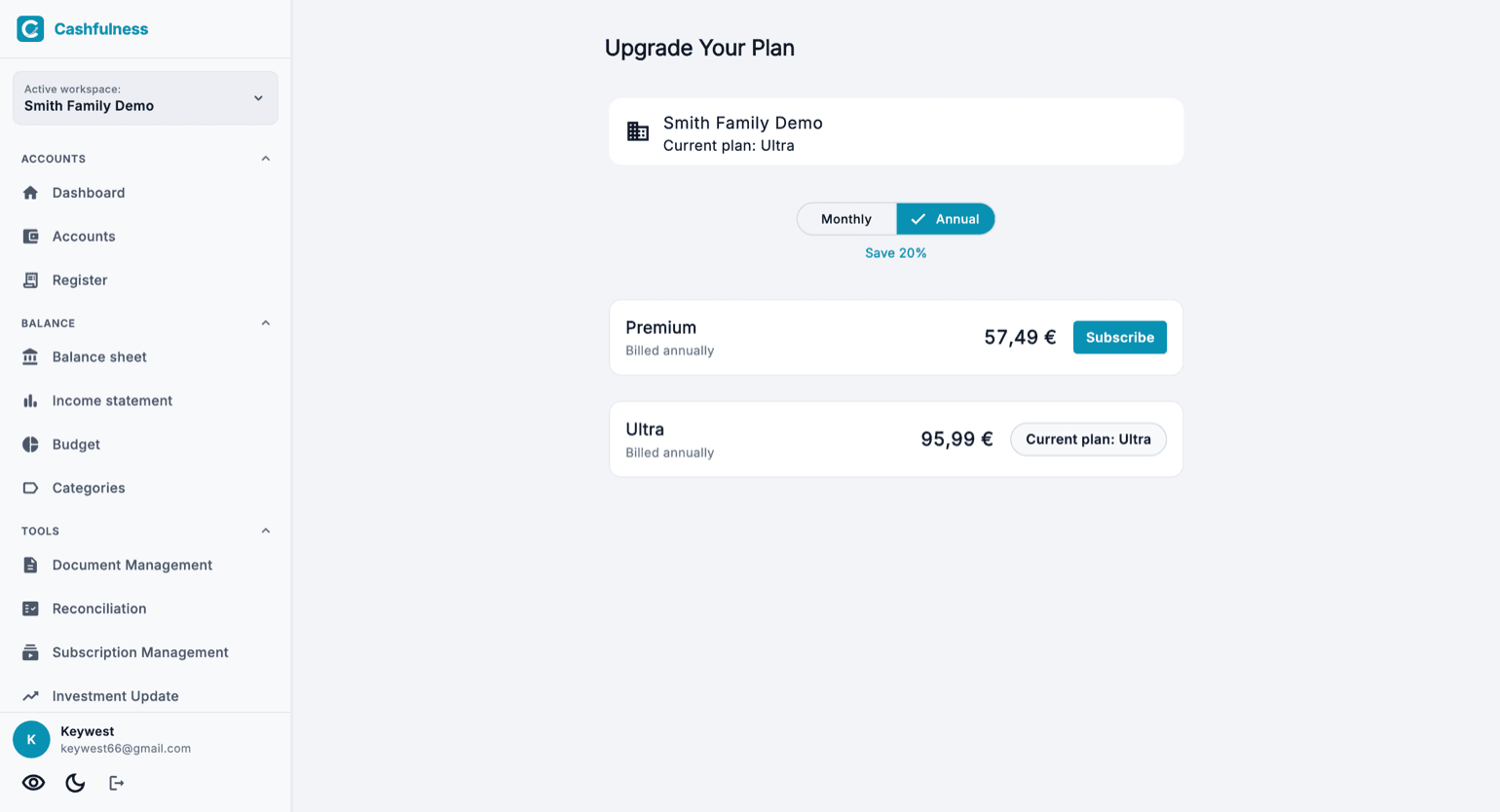
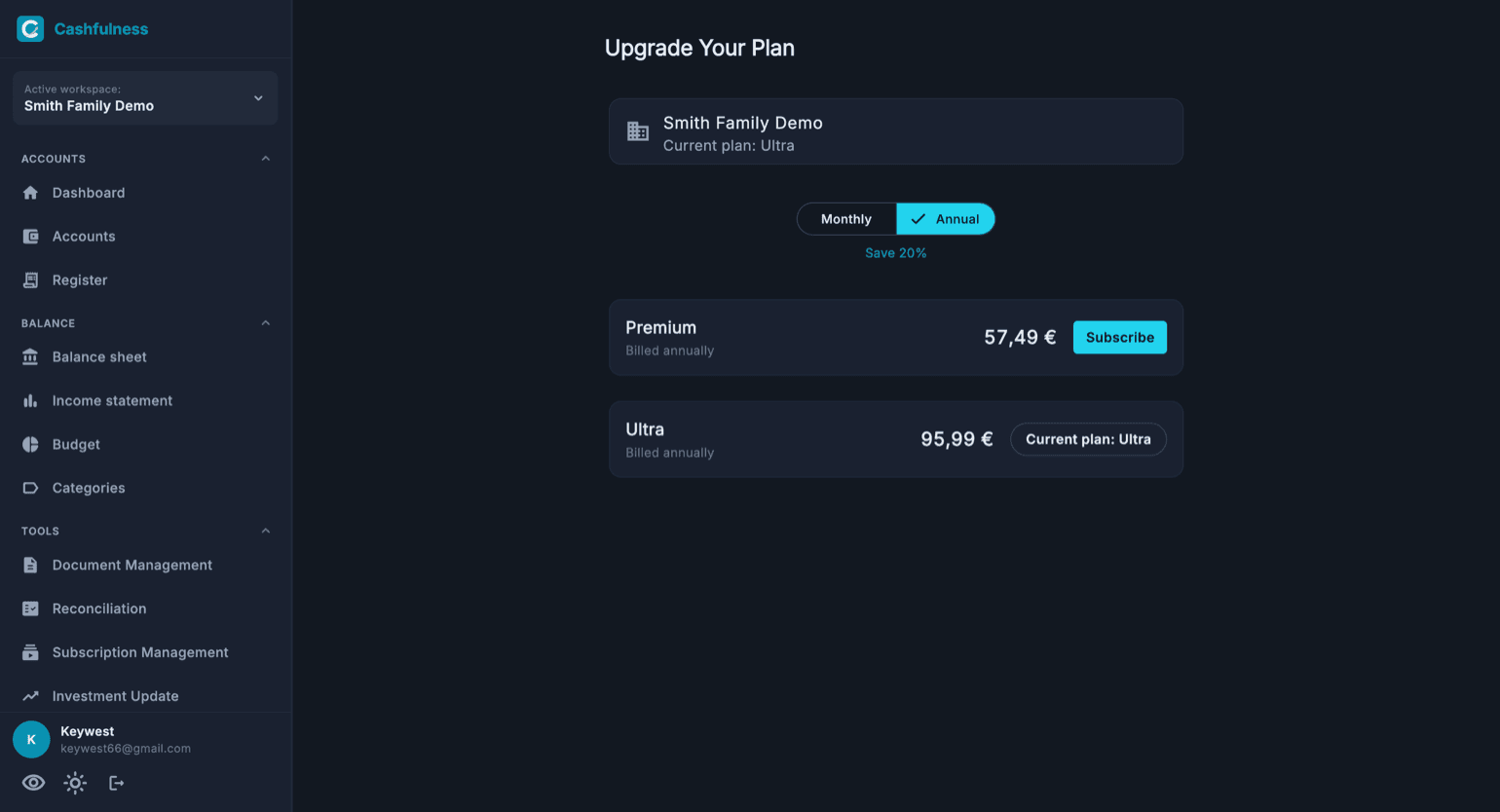
You will always find the up-to-date details of each plan, including prices and limits, on the Pricing page of the website. Prices are those on the website, in euros with taxes included; on the App Store and Google Play you pay the price the store shows you in your country's currency, which may be different. The comparison screen in the app shows your current plan and lets you choose between monthly and annual billing before subscribing.
One subscription, all your workspaces
Your subscription follows you, not a single workspace. When you subscribe, the benefits of your plan apply to every workspace you own, including the ones you create later.
In workspaces where you are a member but not the owner, the limits of that workspace owner's plan apply instead.
How to subscribe
The purchase flow depends on your platform: on desktop and web you complete the payment through the web checkout, while on mobile the purchase goes through your device store's in-app purchases.
- Open the plans screen, for example from the Subscription page in Settings.
- Choose monthly or annual billing with the selector at the top.
- Press Subscribe on the plan you prefer, Premium or Ultra.
- Complete the payment: web checkout on desktop, in-app purchase through the store on mobile.
The Subscription page in Settings
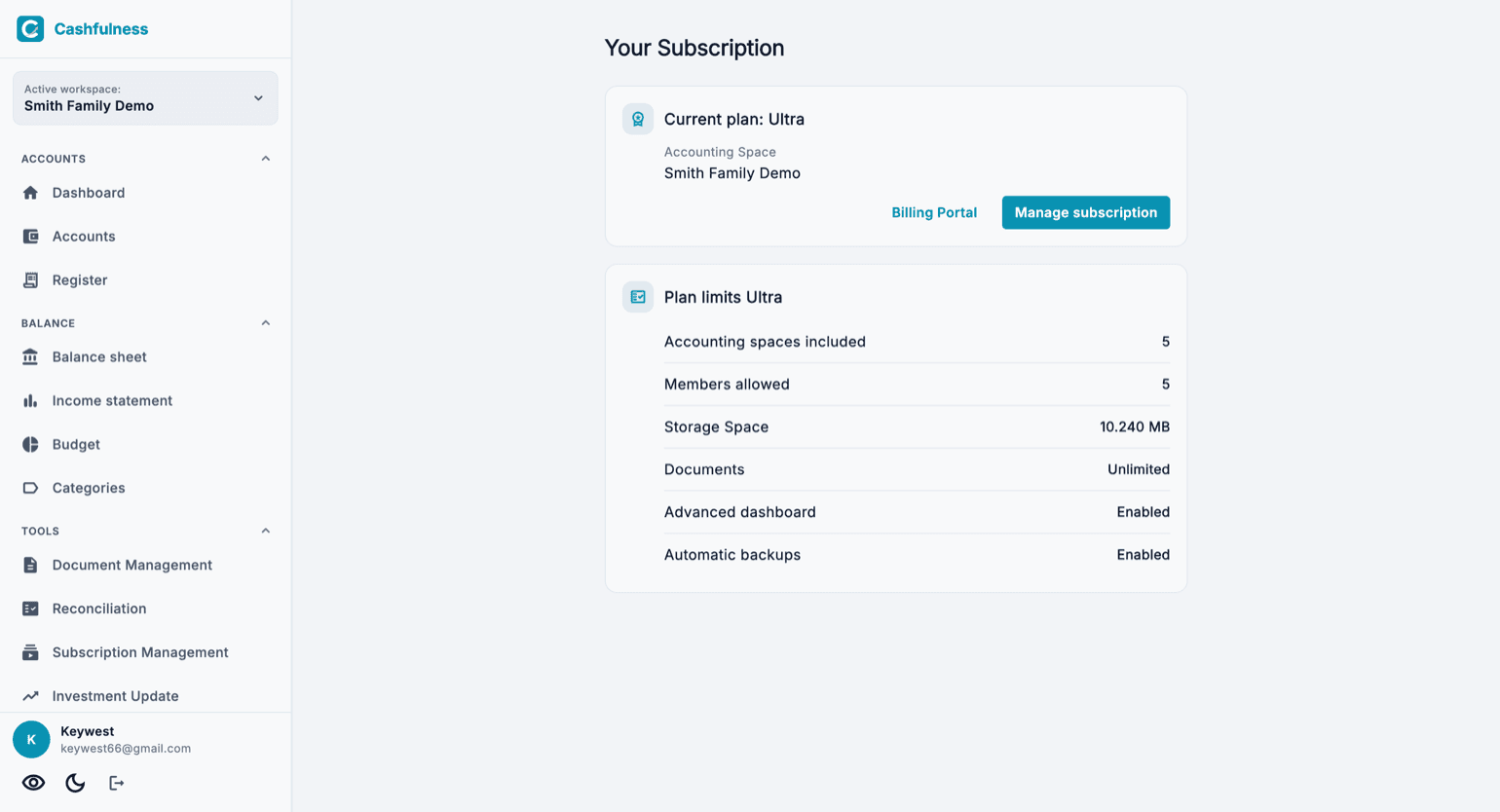
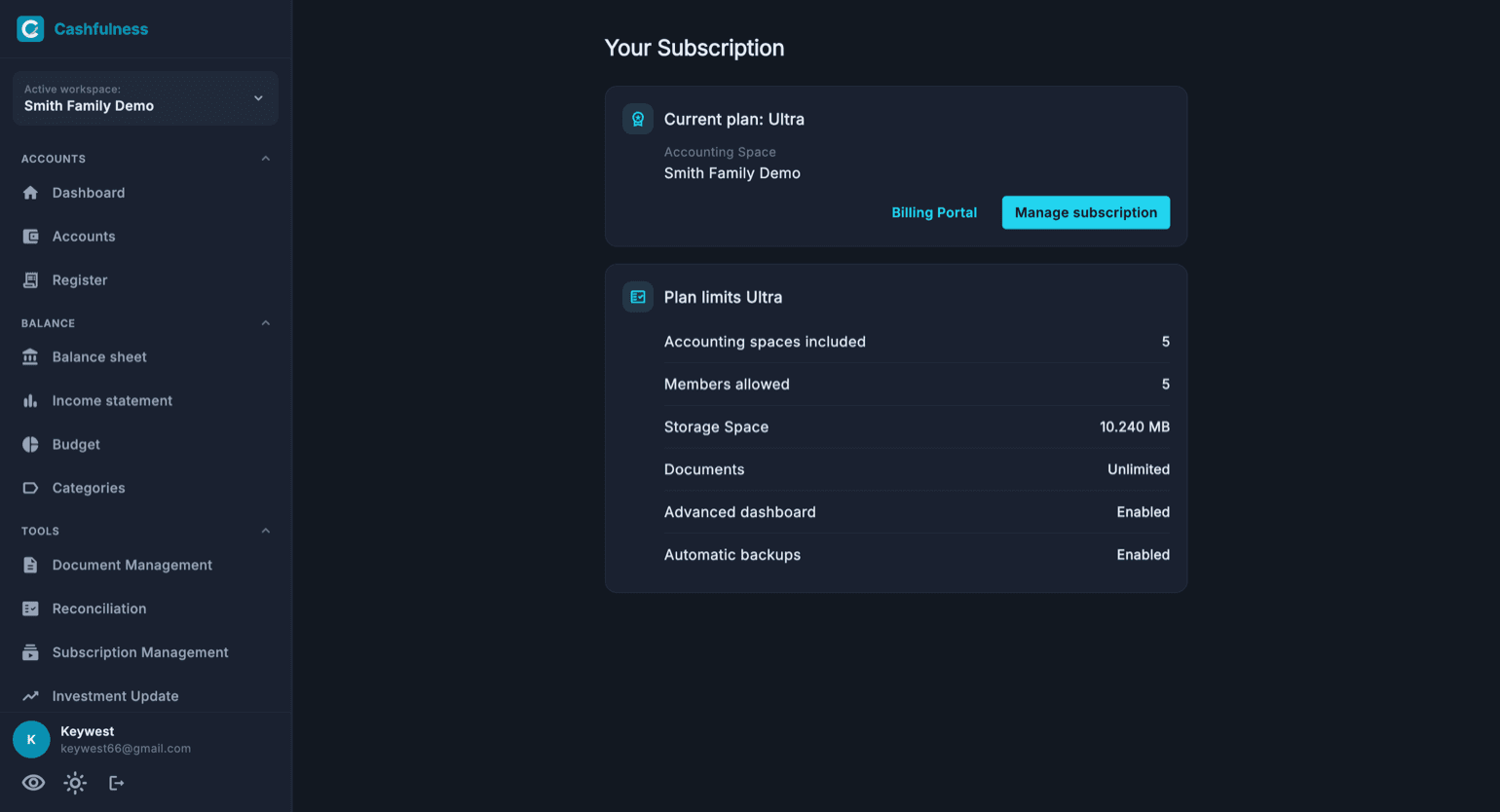
In Settings you find the Your Subscription page, split into two boxes. Your plan is personal: the active plan, its expiry and renewal. Limits of this space is about the accounting space you are using and says which plan its limits come from: yours, if the space is yours, or the owner's, if you are a member, and in that case your personal plan does not change them.
The Billing Portal button takes you to where your subscription is billed: the subscriptions page of the App Store or Google Play if you bought it on your phone, or the payment portal if you bought it on the website, where you also find receipts and your payment method. That is where you cancel. Manage subscription, on the other hand, opens the plans, so you can switch to a different one. With a complimentary plan the Billing Portal button does not appear: there is nothing to pay and nothing to cancel.
Downgrade: nothing gets deleted
If you switch to a lower plan, your data stays where it is: nothing is deleted. Workspaces that exceed the limits of the new plan are simply frozen in read-only mode, so you can keep consulting them.
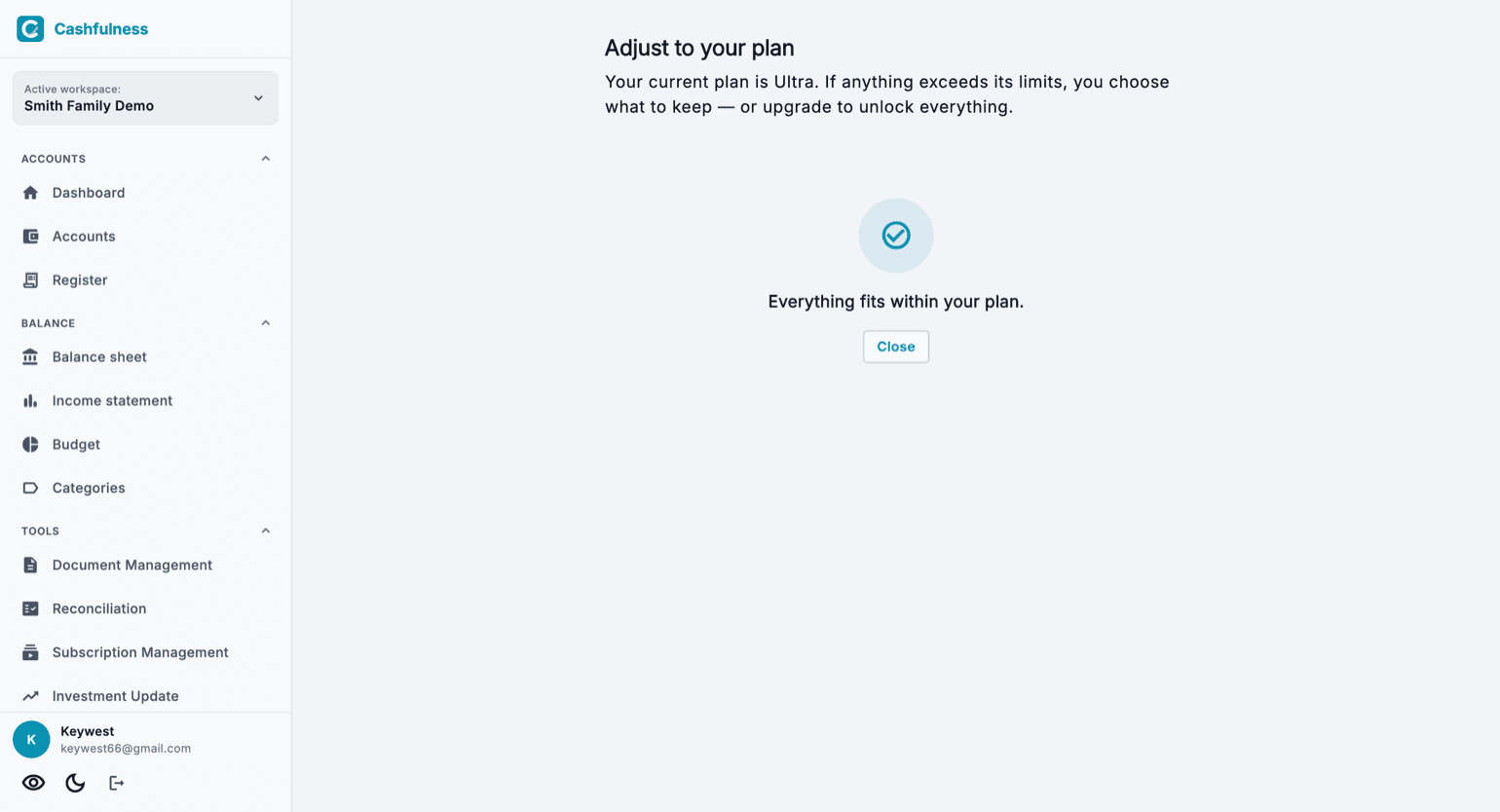
The Adjust your plan screen guides your choice: you decide which workspaces to keep active and which to release, or you can upgrade to unlock everything again. If everything already fits within your plan's limits, the screen confirms it and there is nothing else to do.
When a paid subscription expires without being renewed, all your data stays where it is, but until you renew it you can't add anything new to your workspaces: when you try, the app takes you to the plans screen and tells you why. In workspaces where you are a member, the owner's plan applies: if it's their subscription that has expired, the app tells you so, and a subscription of your own doesn't unlock that workspace.
During the beta
The Cashfulness beta is invite-only and testers receive a complimentary plan for the duration of the program: you can try the paid plan features without subscribing.
The complimentary plan appears as usual on the Subscription page in Settings, together with its expiry date.